
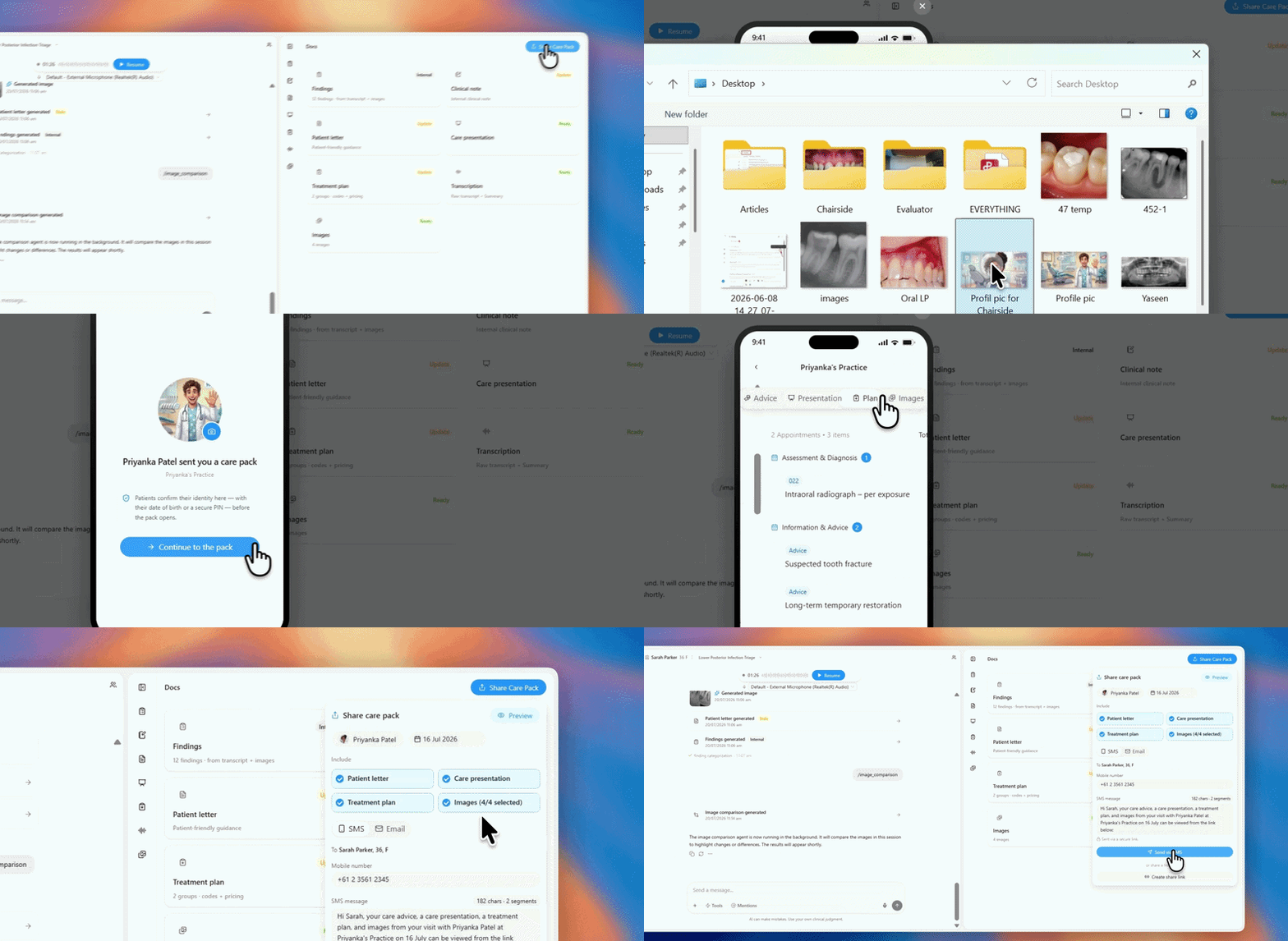
You're previewing a care package and realize your photo is missing or outdated. You want to update it without leaving the preview.
How to use it:
- Open a care pack preview
- Look for your photo in the preview
- If no photo, click the fallback icon (default avatar)
- If photo exists, click on it
- Choose:
- Upload new photo
- Remove photo
- Keep current photo
- Photo updates immediately in the preview
- When ready, click "Send"
Add a professional headshot. Patients connect better when they see who they're talking to.
What to expect:
Your photo appears in:
- The care pack preview (what patient sees)
- The share panel (when you're sending)
- If no photo is set, a clean fallback icon appears instead
Common questions:
Q: What photo format should I use?
A: JPG, PNG. Keep it professional (headshot recommended).
Q: Can I update my photo without previewing?
A: Yes. Go to Settings → Profile Photo. But updating during preview is faster if you notice it's missing.
Q: What size should the photo be?
A: Any size works. Chairside will crop and resize automatically.