
In this article:
- How It Works
- Starting a Session on a Connected Account
- Starting a Session Manually
- Letting Your Patient Know
- Stopping a Transcription
- Frequently Asked Questions
How It Works
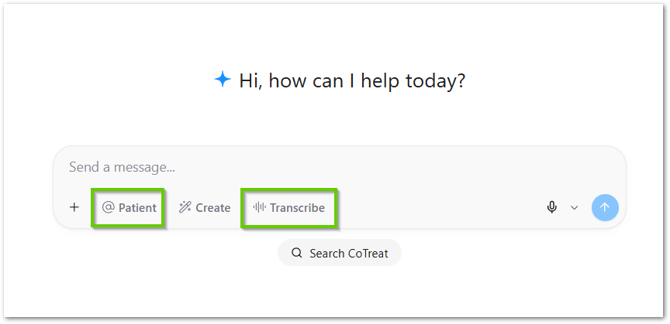
Every session should be linked to a patient before you start, so Chairside knows who the notes, letter, and Care Pack belong to. There are two ways to do this, depending on your setup. If your practice has a system connected to Chairside, such as a practice management system, or an image viewer, you can search for the patient directly from the home page. If nothing is connected, or you prefer to do it manually, you can link the patient from within Transcribe itself.
Starting a Session on a Connected Account
If your practice has one or more systems connected, Chairside can search for patients directly from the home page. This applies to practice management systems as well as connected imaging and photo systems.
- On the home page, click Patient.
- Type the patient's name and click the search button for the connected system you want to use.
This will read as Search followed by the name of that system - for example, Search Core Practice, Search D4W, or Search Sidexis, depending on which systems your practice has connected. - Select the patient from the results, and start the session directly from there.
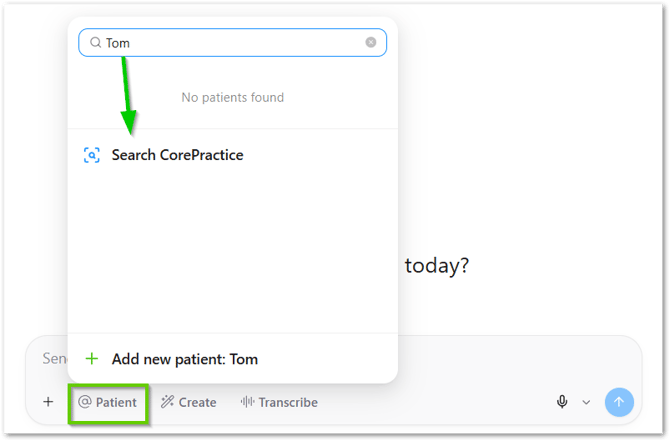
The label on this button always matches the connected system - for example, Search Core Practice, Search D4W, Search Sidexis, or Search Google Drive. If you're unsure which systems are connected for your practice, confirm with whoever set up your CoTreat integrations.
Starting a Session Manually
If your account isn't connected to a practice management or imaging system, you can still start a session directly from the home page. There are two ways to do this.
Searching from the Home Page
- On the home page, click Patient.
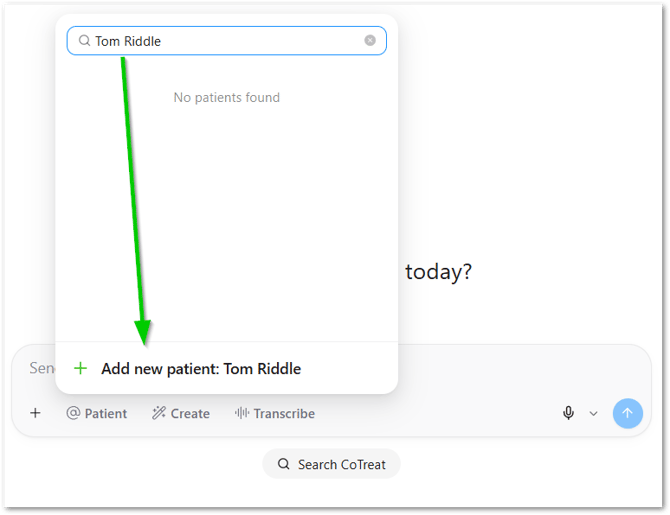
- Type the patient's full name.
- Chairside searches for past sessions with that patient.
- If there are no previous sessions, click Add new patient and enter their details.
- Click Transcribe to start the session directly from there.
Linking a Patient from Within Transcribe
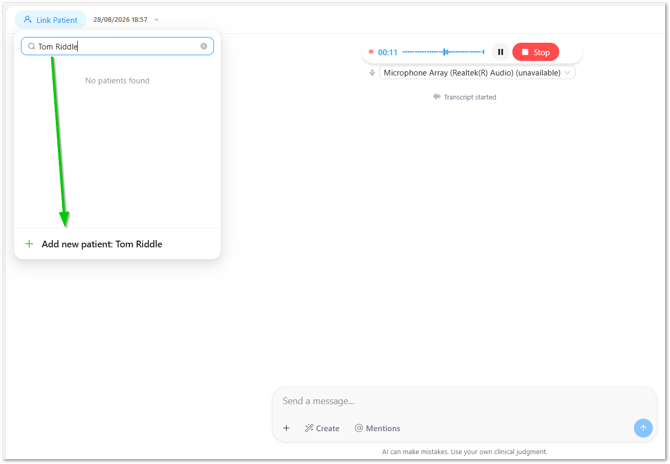
- From the home page, click Transcribe.
- Recording will start immediately, you can leave it running or click the Pause button.
- In the top left, click Link Patient.
- Search for the patient and select them to link the session.
Once the patient is linked, you're ready to begin recording.
Letting Your Patient Know
Before beginning a session, it's good practice to let the patient know a transcription is running. This is usually just a sentence.
For example: "I'm just having a transcription running so I can send you a letter or a summary after our appointment - is that okay?" Framing the transcription around what the patient receives, such as a letter or summary, tends to be more reassuring than describing it simply as a recording.
Stopping a Transcription
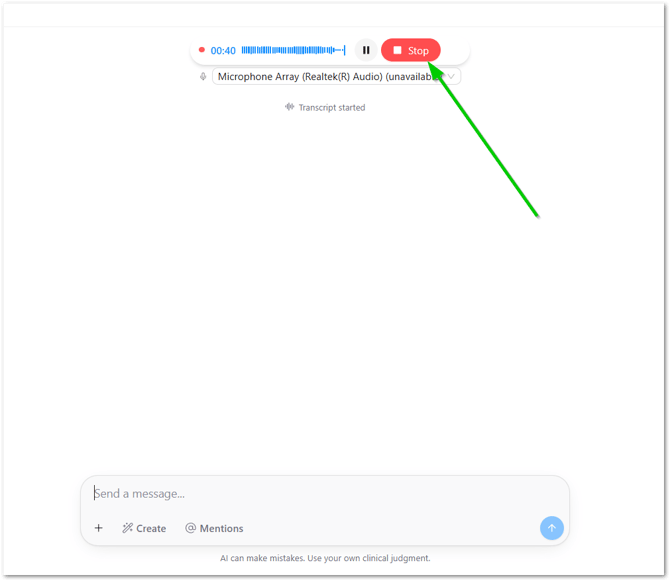
Once the consult is complete, click Stop to end the session. A session can generally run for the full appointment, with no need to start and stop between different parts of the same consult.
Click Stop before moving on to the next patient. A session left running can carry into the next patient's conversation. If this occurs, copy the relevant portion of the transcript into a new session for the correct patient.
Frequently Asked Questions
What happens to the audio recording?
It's transcribed, then deleted. Chairside removes the audio file as soon as transcription finishes, it isn't kept. The one exception is if your practice has turned on Retain audio recordings in Account > Practice > Advanced, which keeps the original audio so our support team can investigate transcription problems. That setting is off by default.
How long does Chairside keep a session?
The session, including the transcript, and the notes, letters and Care Packs generated from it, stays in your account until someone deletes it. There's no automatic expiry. You can delete a session at any time, and your practice remains responsible for meeting the record-keeping periods that apply in your State or Territory. See How Chairside Protects Your Data for how retention and deletion work.
Do I start a new session for a returning patient, or resume the last one?
A new session should be started for each visit, even for a returning patient. This ensures everything sent to the patient remains relevant to that specific appointment.