
Chairside connects directly to your practice's existing practice management system (PMS) and imaging or image-viewer software, so patient records, treatment plans and clinical images can flow into a session automatically. Setting this up isn't self-serve - our team configures each connection with you directly.
In this article:
- Supported Practice Management Systems & Image Viewers
- Checking Your Eligibility
- Requesting a Connection
- Good to Know
Supported Practice Management Systems & Image Viewers
Chairside currently supports the following:
| Practice Management System | Supported Image Viewer(s) |
|---|---|
| Dental4Windows | Centaur Media Suite |
| Core Practice | Core Practice Image Module |
| Dental4Web | MediaWebPACS |
| CareStack | AEKA |
| Dentally | Dentally Vision |
| Principle | Principle Imaging |
| Zavy360 | Zavy Imaging, Sidexis, Romexis, Examine Pro, Google Drive, OneDrive |
Not seeing your system listed, or want the full picture of what data syncs, how image-viewer matching works, and cloud-drive folder naming? See Understanding What Syncs Between Chairside and Your PMS, or email help@cotreat.com.au and we can confirm what's possible.
Checking Your Eligibility
Integrations - for both your practice management system and any imaging or image-viewer software - are only available once your practice's subscription has been upgraded to a Practice account. If you're still on an individual or free trial account, you'll need to upgrade first.
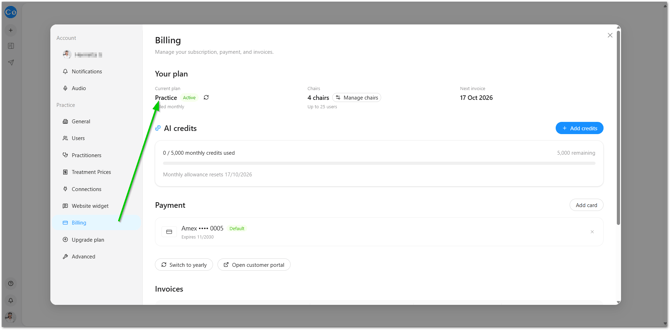
This eligibility requirement is the same whether you're connecting a PMS, an imaging/image-viewer system, or both.
Requesting a Connection
Once your practice is on a Practice account:
- Email help@cotreat.com.au and let us know which practice management system and/or imaging or image-viewer software you'd like connected.
- Our team will reach out to you directly to set up the connection.
Have the names of your practice management system and imaging software ready when you reach out - it helps our team get the request moving straight away.
Good to Know
Do I need to configure anything myself under Account > Connections? No - this tab reflects the connections our team sets up with you directly; there's nothing for you to configure yourself.
Does this process cover both my PMS and my imaging/image-viewer software? Yes - the same process (a Practice account, then a request to help@cotreat.com.au) applies to both.
I'm seeing a connection error, or patient search isn't returning the right results - what should I do? This usually points to an issue with the integration itself rather than your account setup. See Troubleshooting Integrations for the steps to check first. If it's still not resolved, raise a help ticket in Chairside (Help icon > Contact Support) or email help@cotreat.com.au and our team will help sort it out.
My practice management system or image viewer isn't in the list above - can it still be connected? Reach out to help@cotreat.com.au and let us know what you're using - our team can confirm what's possible.
Does Chairside send anything back into my practice management system? No - the connection is one-way only, from your PMS into Chairside. See Understanding What Syncs Between Chairside and Your PMS for the full picture.
We're switching or upgrading our practice management system - will Chairside still work? Not always automatically - a version change on your PMS side can break the connection without an alert on either end. Let us know before or as soon as you switch, at help@cotreat.com.au, so we can reconnect the integration for you.
What if I'm not sure which account type I'm on? Check Account > Billing, or email help@cotreat.com.au and we can confirm it for you.