
Why this matters
Templates help your team send CoTreat Packs faster and more consistently.
Instead of rewriting the same message each time, you can reuse structured content that improves patient understanding and saves time.
Who this is for
Practice Managers, Treatment Coordinators, and Front Desk team members who send CoTreat Packs.
When you’d use this
Use this when you want to:
- Create a new template
- Update existing messaging
- Standardise how your team communicates with patients
Method 1 (Recommended): Create a Template
This is the easiest and most common way to create templates.
Step-by-step
- Go to Synced Patients
- Within a patient tile > Click Create Digital Treatment Plan
- In the Note to Patient section:
- Click Templates
- Select a generic template or any existing template
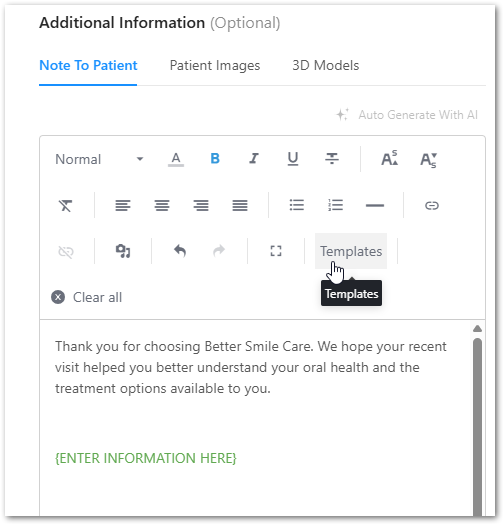
- Edit the content as needed:
- Add treatment-specific details
- Adjust wording for your clinic
- Keep it clear and patient-friendly
- Once ready, click:
Templates → Save current note as template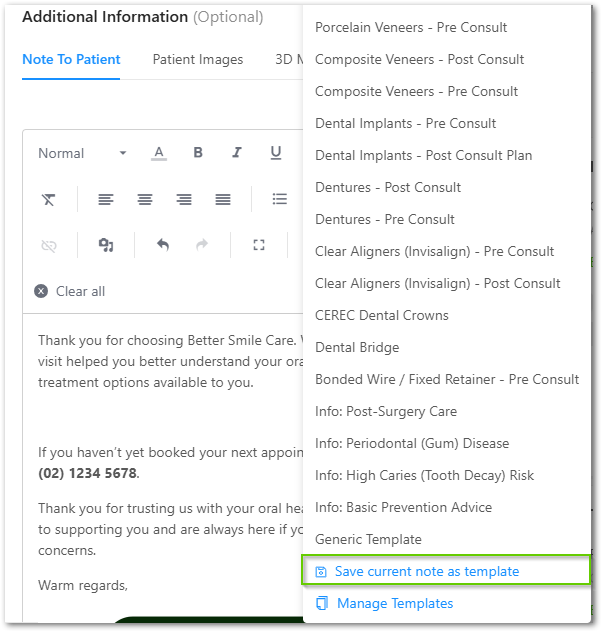
- Give your template a clear name & description
(e.g. “Implants - Post Consult”)
💡 Why this method works best
- Keeps your formatting consistent
- Uses your existing structure (e.g. footer, tone)
- Saves time compared to starting from scratch
Method 2: Create or Edit Templates from Settings
Use this if you want to manage templates in one place.
Step-by-step
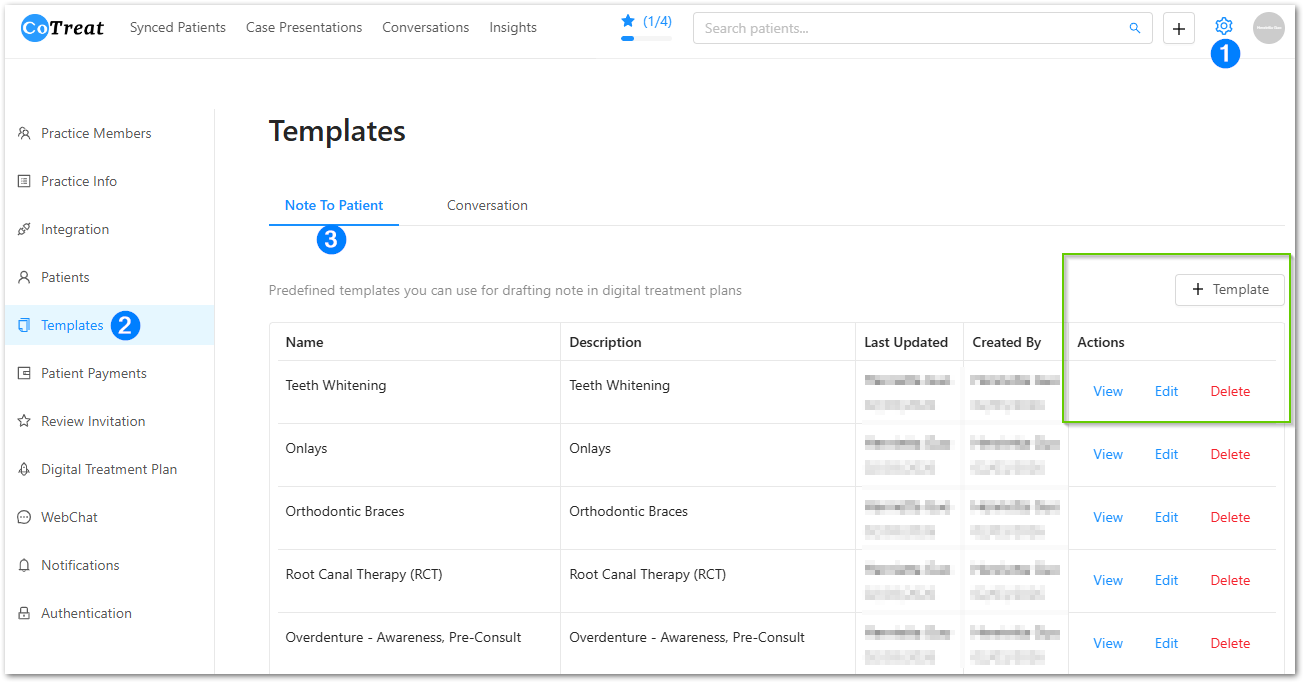
- Click the Settings ⚙️ icon
- Go to Templates
- From here you can:
- View existing templates
- Edit templates
- Delete templates
- Create a new template
- Click + Template (if needed)
- Add your content
- Click Save
💡Templates created from scratch will not automatically include your usual structure (like your footer). You’ll need to add this manually.
Best-practice tips
- Use Method 1 (editing from Generic Template) to stay consistent
- Keep templates short and easy to read
- Create templates for your most common treatments
- Use clear naming so your team knows when to use each one
If something doesn’t look right
- If your template looks different, check if it was created from scratch
- If formatting is missing, try starting from the Generic Template
- If you can’t find a template, check under Manage Templates
If you’d like a hand or something doesn’t look right, our support team is happy to help.