
Copy CoTreat's Patient letter template, add your practice details, and every letter after that is personal, short and signed off the way you want.
A patient letter is a short summary for any visit. For something larger, such as a patient still on the fence about treatment, we suggest a case presentation instead. See [link: Customising Your Case Presentation Template]. For clinical notes, see [link: Using Clinical Note Templates].
In this article
- Quick Setup (5 Minutes)
- Making It Sound Like You
- Adding Recommended Sections
- Adding Images and Videos
- Adding Links and Downloads
- Changing Sections
- Common Questions
- Getting Help
Quick Setup (5 Minutes)
- Copy the template: click Create > New template > Copy an existing template. Under From CoTreat, select Patient letter and click Copy and edit.
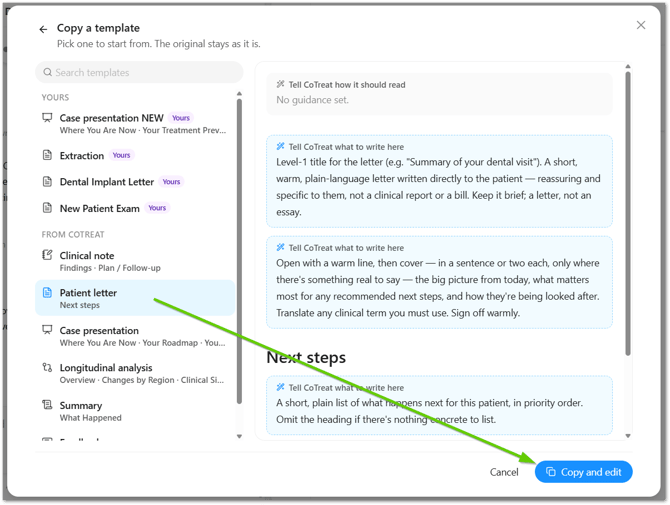
- Add a blue box at the top: click Click to add a line > Instruction. This adds a blue instruction box (we call these blue boxes). Drag it to the very top.
- Paste your details: copy the box below and paste it into that blue box.
- Fill in the [CAPITALS]: your contact person, phone, booking link and closing (Warm regards or Kind regards). Delete lines you don't need.
- Save: name the template, turn on Share with practice and Patient facing, and click Add template.
MY PRACTICE DETAILS
Change the words in [CAPITALS]. Delete any line you don't need. Any line still showing [CAPITALS] is ignored.

CONTACT PERSON: [NAME], [ROLE, e.g. Reception]
PHONE: [PHONE NUMBER]
EMAIL: [EMAIL]
BOOKING LINK: [PASTE LINK]
CLOSING: [Warm regards or Kind regards]

HOW TO WRITE THE LETTER
- Use only what was said in the appointment, the treatment plan, session images and the details above. Never make up findings, dates, fees or links.
- Keep it to about one page, with short paragraphs. Explain any dental term. No tooth numbers. Australian spelling.
- Leave out any section with nothing real to say.
- Only include a link if it's filled in above. If a link is blank or still in [CAPITALS], don't mention it.
- Show links as clickable words, never as a bare web address. Add the booking link ("book online") only if booking was suggested.
- Before the sign-off, invite questions to the contact person above, with their name, role and phone.

SIGN-OFF
End every letter with:
[Closing],
[Title] [Treating Practitioner Name], [Practice Name]

Use the CLOSING above, or "Warm regards" if it's blank.
Adding your details here makes sure every letter uses the right contact person, links and sign-off. Each template keeps its own details, so if something changes, update it in each template you use. Any line still showing [CAPITALS] is skipped.
Your letters will now work. The next two steps take a few more minutes and make them sound like you.
Making It Sound Like You
The Tell CoTreat how it should read box at the top sets the tone of every letter. Use it to make letters sound like your dentists, and to adapt each letter to the patient, for example gentler for a nervous patient or clearer on costs for someone worried about money.
- Click into Tell CoTreat how it should read.
- Paste the text below.
- Change any wording to match how your dentists talk to patients.
Write as the treating dentist speaking to the patient, like a friendly follow-up after their appointment. Warm, calm and plain English, with short sentences. Use the dentist's own words and phrases where possible, so it sounds like them. Never salesy or pushy.

Match how the patient came across in the appointment:
- Nervous, or mentioned a bad past experience: be extra gentle and reassuring, and explain what happens next step by step.
- Worried about cost: be clear and upfront about any fees that were discussed, and mention payment options if they came up. No pressure.
- Asked lots of detailed questions: give a little more detail and the reasons behind the recommendation.
- Short on time or wanted the bottom line: keep it brief and lead with the next step.
- Chatty and upbeat: be warm and encouraging, and focus on how they'll look and feel.
Base this only on what the patient said and how they responded. Never label the patient or mention their personality in the letter.
The patient styles are based on the DISC communication styles: direct, enthusiastic, steady and detail-focused. CoTreat picks up the cues from the appointment, so you don't need to tell it which style each patient is.
Add a line about your practice's own voice, e.g. "We use first names and keep things relaxed" or "We're a family practice, so keep it friendly for parents.
Adding Recommended Sections
CoTreat's Patient letter already has a title, an opening and Next steps. For a fuller letter, add these two sections. For each one, hover where it should go, click +, add a Heading, then add an Instruction (blue box) under it and paste the text.
What We Found
Heading: What We Found (put it before Next steps)
This is the findings section.
- In plain English, what the dentist found and what it means for the patient.
- If the dentist mentioned an X-ray or intraoral photo, include the most recent one of that type.
- If the dentist explained what could happen without treatment, include it briefly and kindly. Never add consequences they didn't mention.
- Leave out this section if everything was healthy.
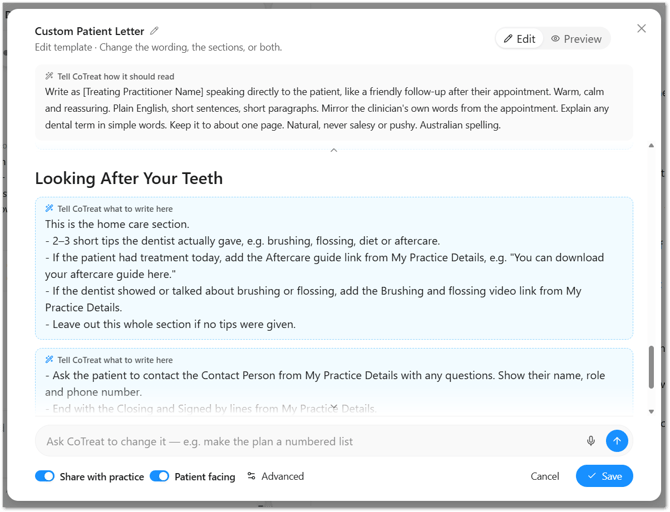
Looking After Your Teeth
Heading: Looking After Your Teeth (put it after Next steps)
This is the home care section.
- 2–3 short tips the dentist actually gave, e.g. brushing, flossing, diet or aftercare.
- Leave out this section if no tips were given.
Each section leaves itself out when there's nothing to say, so a quick check-up letter stays short.
Adding Images and Videos
- Image or video in every letter: hover where you want it, click + and choose Image or Video.
- Videos: paste a direct YouTube link, e.g. https://www.youtube.com/watch?v=... Embed codes and videos uploaded from your computer aren't supported, so upload your video to YouTube first (set it to Unlisted to keep it out of search).
- The patient's own photos or X-rays: to add these automatically, ask for them in a blue box, e.g. "If the dentist mentioned an intraoral photo, include the most recent one."
Adding Links and Downloads
Links in every letter: the setup box includes a booking link. To add another, such as an aftercare guide or a video, add a new line under it with a name and the full link (starting https://), e.g. AFTERCARE GUIDE LINK: https://... Then say when to include it, e.g. Add the aftercare guide link only if treatment was done today. CoTreat turns links into clickable words.
Files patients can download (e.g. a PDF): files can't be uploaded into a letter. Upload the file to Google Drive, OneDrive or Dropbox, set sharing to anyone with the link, then paste that link as above.
Changing Sections
- Edit: click any heading or blue box. Drag to reorder.
- Add: hover and click +, then choose Heading, Instruction (a blue box), Image, Video or Widget. Widgets (roadmap, treatment options, investment, payment plans) are made for case presentations, so most letters don't need them.
- Remove: hover over a blue box and click the bin icon.
- Good blue boxes say three things: what to write, where it comes from, and when to leave it out.
Want different letters for different visits, such as check-ups and implant consults? Make a separate copy for each.
Common Questions
Can I upload a video from my computer or use an embed code?
No. Upload it to YouTube and paste the direct YouTube link.
Can I attach a PDF?
Not directly. Share it from Google Drive, OneDrive or Dropbox and add the link.
Will images and videos show in every letter?
Yes, if added with Image or Video. For sometimes-only, use a blue box and say when.
What's the difference between a patient letter and a case presentation?
A patient letter is a short summary for any visit. A case presentation is a fuller proposal with options, a roadmap and costs, for patients deciding on bigger treatment. See [link: Customising Your Case Presentation Template].
If my details change, do I need to update every template?
Yes. Each template keeps its own details in its top blue box, so update each one you use. Tip: set up one letter fully, then use Make my own copy for other visit types so you only fill in the details once.
Getting Help
Stuck, or have feedback or a feature request? We'd love to hear how your templates are working and what you'd like to see next.
- Click the Help icon in CoTreat and select Contact Support, or
- Email help@cotreat.com.au