
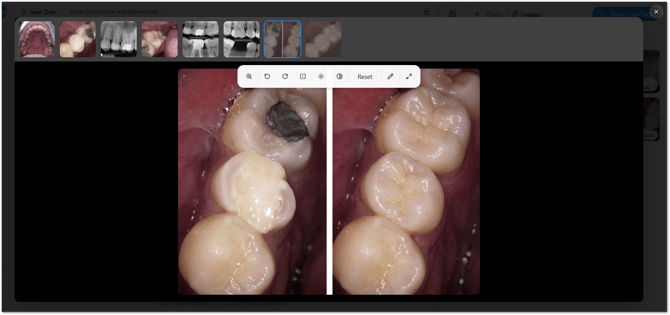
Generate Image creates a realistic preview from a photo already in a patient's chart, so they can see an outcome instead of just hearing about it.
Table of contents
- What is Generate Image?
- Adding images to a session
- Mentioning an image
- Creating a preview
- Answering common questions
What is Generate Image?
Generate Image takes a photo already in the chart and produces a realistic preview based on what you describe. Use it for:
- Treatment previews - a before-and-after for crowns, veneers, implants, whitening, and other cosmetic or restorative work.
- Patient education - a preview of what a condition could look like if left untreated, such as further gum recession from periodontal disease, or wear from grinding. Most patients have never seen what their own teeth could look like in either direction, and a visual is often more persuasive than an explanation.
Adding images to a session
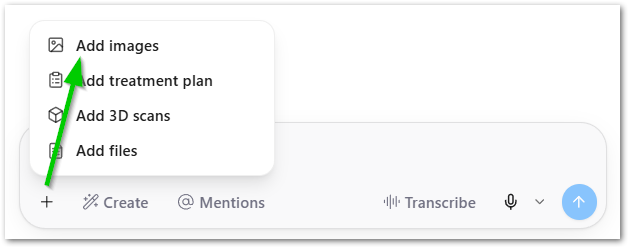
Generate Image needs at least one image already in the session to work from. Select the + icon next to the chat bar, and select Add images to upload one from your computer (or connected integration).
Give it a few seconds to finish loading before moving on to the next step.
Mentioning an image
Before generating a preview, tell Chairside which photo to work from:
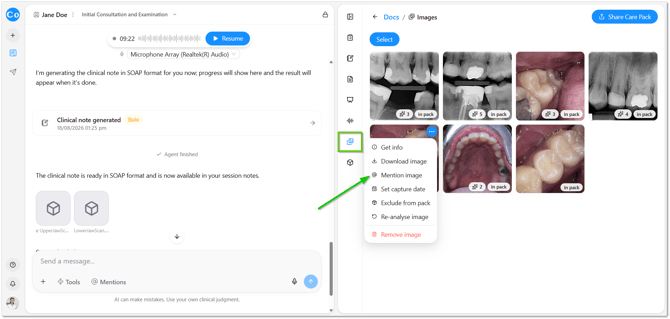
- In the session, open the Images section.
- Hover over the top right of the image you want to use, and select the three dots.
- Select Mention image.
Creating a preview
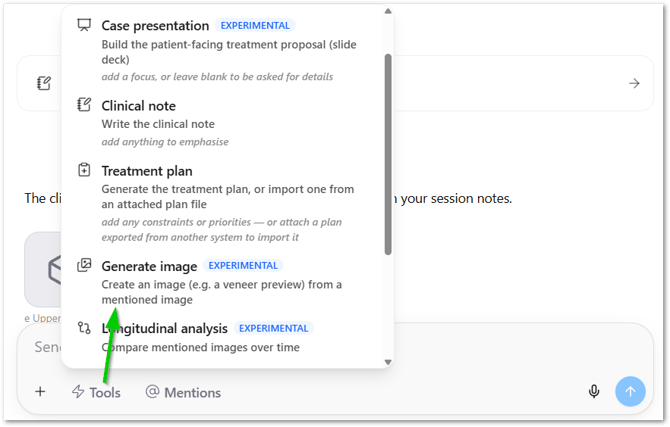
- Open Tools and select Generate Image.
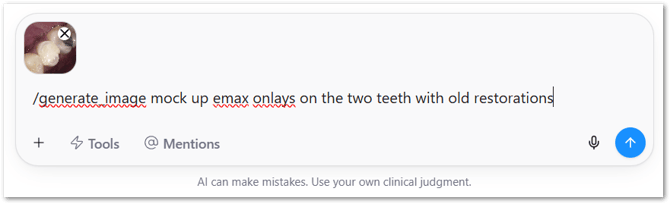
- Describe what you want created - for example, "Create six veneers on the top teeth, leave the rest unchanged" or "Create a mock-up of the teeth that need treatment."
- Chairside generates the preview from the mentioned image.
If the image was mentioned during a transcribed consult, Chairside has more context to work from and the result will generally be more accurate. Without a transcription, it still works - just be as specific as possible in your description, since a vague prompt is more likely to produce a confused result.
Answering common questions
Do I need a transcription for this to work? No, but it helps. With one, Chairside has more context and the preview tends to be more accurate. Without one, describe exactly what you want in the chat.
What can I use it for besides cosmetic treatment? Anything visual. Showing a patient what further decay, gum recession, or wear from grinding could look like if left untreated is just as valuable as showing them a whitened smile - it gives them a clearer picture of their own mouth before they decide.
Where does the preview go once it's created? Review it with the patient chairside, or add it to a Care Pack - it also pairs well with a Case Presentation for veneer, crown, or implant cases.
Is Generate Image accurate every time? It's still in Beta, so treat each preview as an illustration rather than a guarantee - worth a quick check before sharing, the same as any AI-drafted content in Chairside.