
Why this matters
Exporting your treatment plan from Core Practice saves time and avoids re-entering treatment details manually.
It helps you quickly create clear, accurate CoTreat Packs for your patients.
Who this is for
Front Desk team members, Treatment Coordinators, and clinicians creating CoTreat Packs without a Core Practice integration.
When you’d use this
Use this when:
- Your practice is not integrated with Core Practice
- You already created a treatment plan in Core Practice
- You want to import item codes, descriptions, and pricing into CoTreat
Export and Import a Treatment Plan
In Core Practice
- Open Core Practice and search for your patient
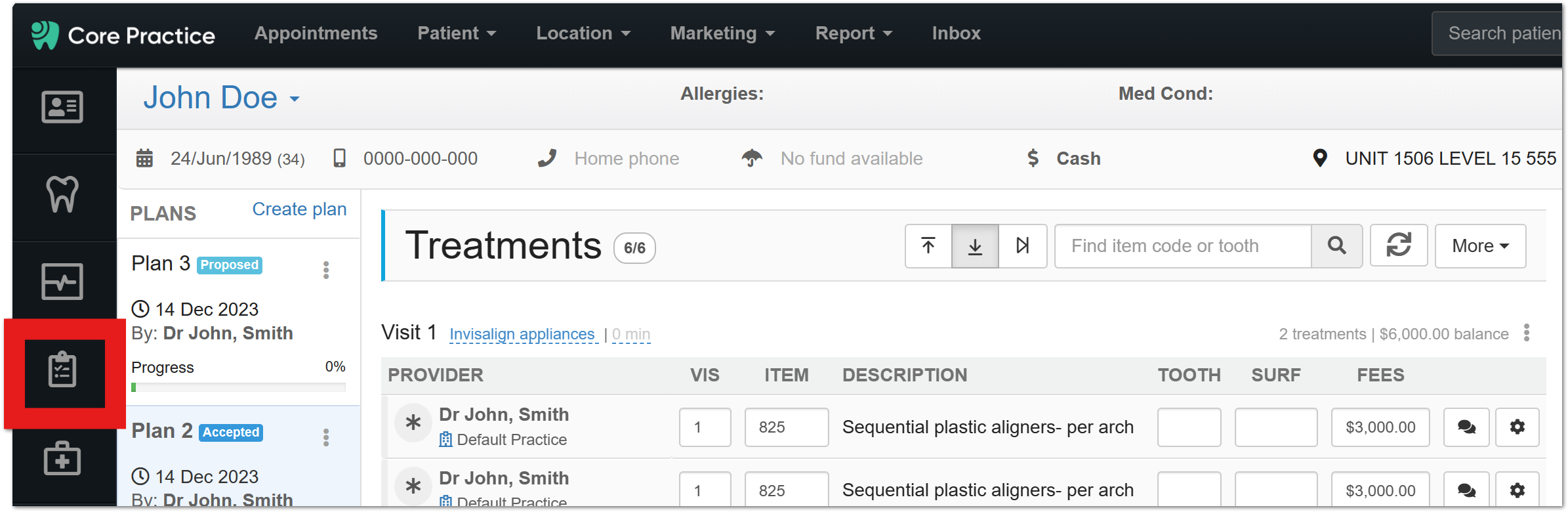
- Click on the treatment plan (plan icon)
- Click Download
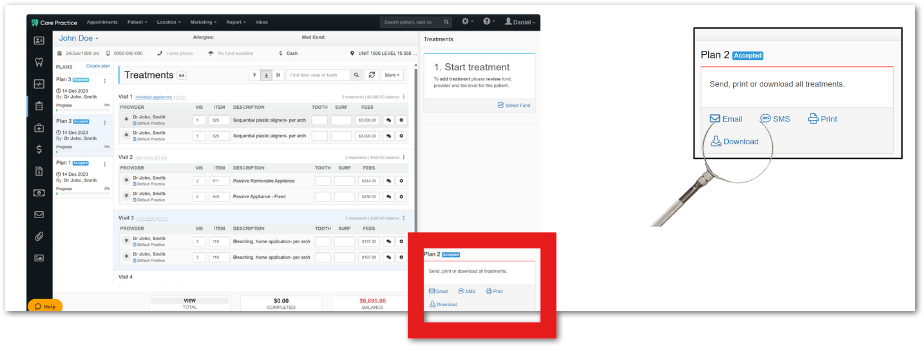
- Select:
- All treatments (recommended)
- Or Incomplete treatments (if following up outstanding work only)
- Do not select “Summary”
- Save the file to your computer (e.g. Desktop)
In CoTreat
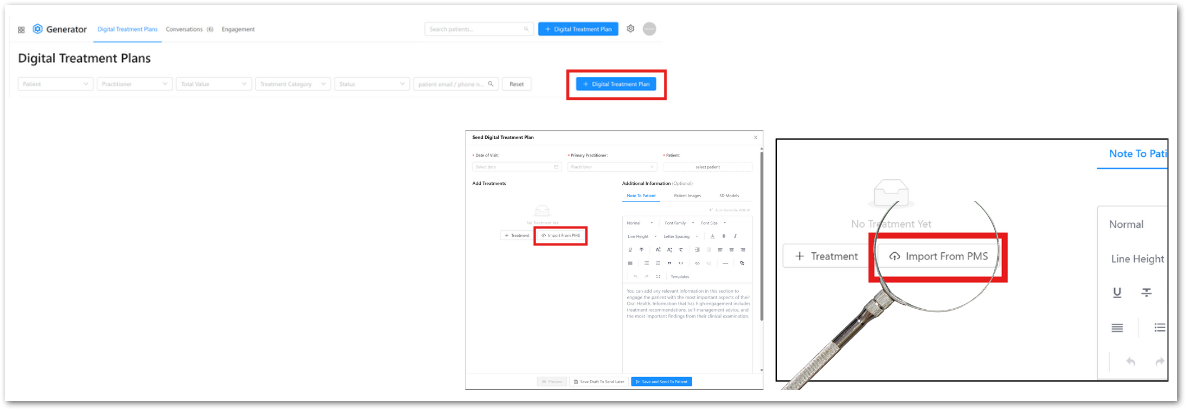
- Go to Create Digital Treatment Plan
- Click Import From PMS
- Select the file you saved
- The treatment plan will automatically populate
What happens next
- Item codes, descriptions, and pricing will be imported
- You can edit or adjust the plan as needed
- Add images, notes, or templates before sending to the patient
Helpful notes
💡 Always select “All treatments” unless you specifically want to follow up incomplete items
💡 Saving files with a clear name can help you find them quickly
💡 Be mindful of patient privacy when saving files locally
Best-practice tips
- Import first, then apply a template to save time
- Review pricing and items before sending
- Keep plans simple and focused for better patient understanding
- Use this workflow consistently if not integrated
If something doesn’t look right
- Check that you selected “All treatments” (not Summary)
- Re-export the file and try again
- Make sure you selected the correct file when importing
If you’re still unsure, our support team can help.