
Seeing duplicate dentists in CoTreat can be confusing for your team and may affect workflows like sending plans or selecting practitioners.
This usually happens due to how practitioner data is synced from your PMS or created in CoTreat. The steps below will help you clean this up so each practitioner only appears once.
Who this is for
Practice Managers or Admin users managing users and practitioners in CoTreat.
When you’d use this
Use this when:
- You see the same dentist listed multiple times
- Practitioners appear more than once when selecting them
- You’ve recently connected or updated an integration
Why duplicates happen
There are two common reasons:
1. Manual + Synced Practitioner
- A practitioner is synced from your PMS
- AND a duplicate was manually created in CoTreat
The synced version is usually the correct one to keep.
2. Multiple Locations in PMS
- The practitioner exists under multiple locations in your PMS
- CoTreat is configured to sync only one location (standard setup)
This can create multiple entries, even though they are the same person
Step 1: Identify the correct practitioner
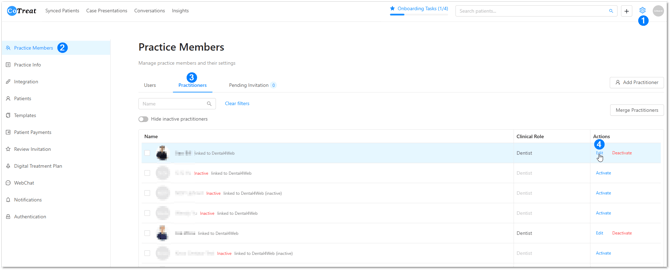
- Go to Settings → Practice Members → Practitioners
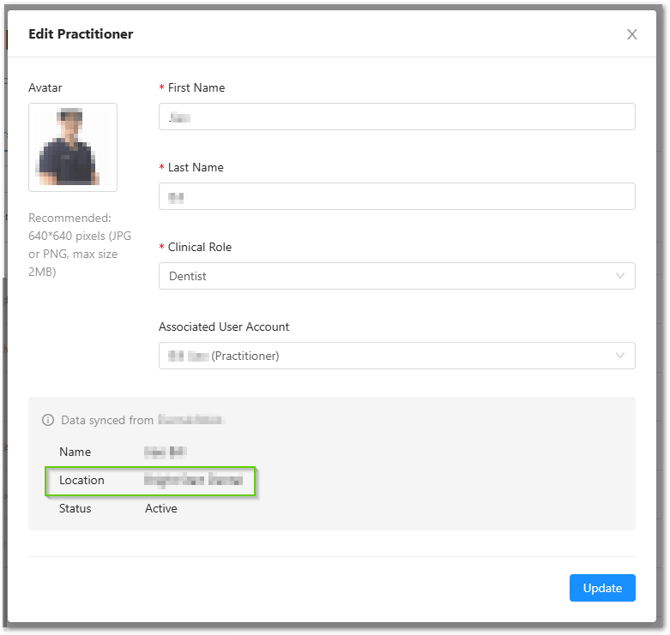
- Click Edit on each duplicate practitioner
- Check the Location field
What to look for:
- Practitioners with the correct location → keep this ✅
- Practitioners with different or no location → likely duplicate ⚠️
Step 2: Disable the incorrect practitioner
- In the Practitioners list
- Find the duplicate with the wrong or irrelevant location
- Click Deactivate
💡 Keep the practitioner linked to the correct location active
⚠️ Important:
Deactivating a practitioner in CoTreat does not affect your PMS.
It only removes the duplicate from CoTreat.
Step 3: If a practitioner has no location
If a practitioner has no location, it usually means they were created manually in CoTreat.
To fix this:
- Deactivate the manual entry
- Keep the synced practitioner (with location)
Step 4: Relink the user to the correct practitioner
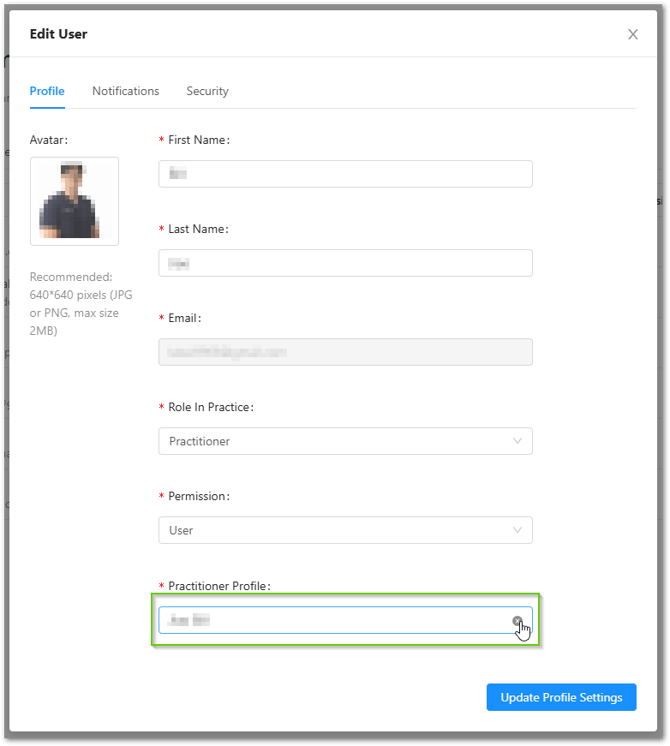
- Go to Users tab
- Click Edit on the affected user
- Remove the current practitioner under 'Practitioner Profile'
- Select the correct (active) practitioner
- Update Profile Settings
👉 The practitioner should now appear only once in the drop-down.
Helpful notes
💡 Practitioners with 'Data synced from PMS' are usually the source of truth
💡 CoTreat typically syncs one location per setup
💡 Each user should only be linked to one active practitioner
Best-practice tips
- Avoid creating practitioners manually if you are integrated
- Review practitioners after integration or location changes
- Keep your practitioner list clean to avoid confusion when sending plans
If something doesn’t look right
If you're unsure which practitioner to keep, check the location or reach out to support before making changes.
If you’d like a hand or something doesn’t look right, our support team is happy to help.