
Why this matters
Grouping treatments into appointments helps patients understand what happens first, what can be staged, and how treatment is structured.
Clear structure reduces confusion and improves decision-making.
Who this is for
Treatment Coordinators, Front Desk team members, and clinicians creating or reviewing CoTreat Packs.
When you’d use this
Use this when:
- Creating a new digital treatment plan
- Importing a treatment plan from your PMS
- Structuring treatment into stages or visits
Step-by-step: Move Treatments into Appointments
- Go to Create Digital Treatment Plan
- Add treatments by either:
- Clicking Import Treatment Plan, or
- Clicking + Treatment to add manually
- In the treatment list, locate the Appt (Appointment) column
- Click on the appointment label (e.g. Appt #1) for the item
- Select:
- An existing appointment (e.g. Appt #1, Appt #2), or
- Click + New Appointment to create a new one
- The treatment item will now move to the selected appointment group
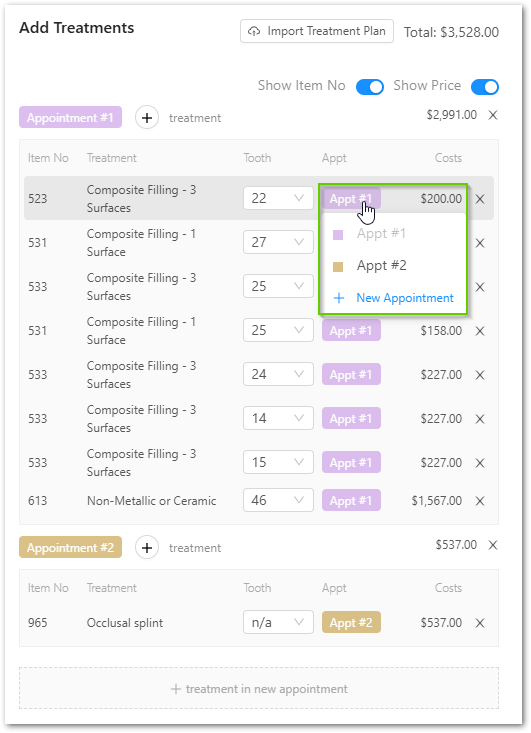
What this looks like
- Each appointment groups related treatments together
- Costs are automatically grouped per appointment
- Patients can clearly see how treatment is staged
Best-practice tips
- Group treatments the way you would explain them chairside
- Keep it simple - avoid too many appointments
- Use appointments to highlight phases (e.g. initial, restorative, cosmetic)
- Review grouping before sending to ensure it feels clear to a patient
If something doesn’t look right
- Check that you’ve selected the correct appointment from the dropdown
- If an item isn’t grouped, reselect the appointment
- If needed, create a new appointment and move items again
If you’d like a hand or something doesn’t look right, our support team is happy to help.