
Setting up your CoTreat account is quick and straightforward - whether you're personalising your own profile and preferences, or you're a practice manager or admin configuring CoTreat for your whole team.
Table of contents
Your account settings
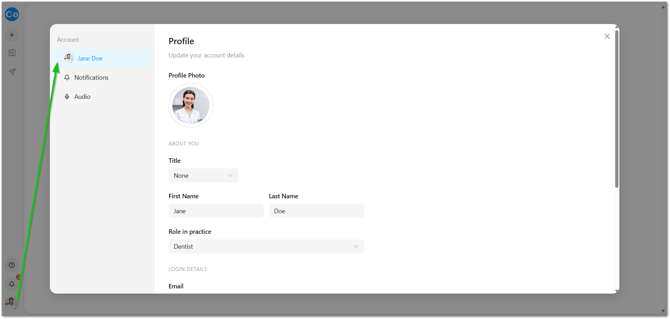
These settings are available to everyone, no matter your role in the practice. You'll find them under Account in the left-hand menu.
Your profile
Update your profile photo, title, first and last name, and your role in the practice. This is also where you can review your login email.
Notifications
This is where you control when you hear about a patient who's ready to proceed - useful to get right if you're the one following up.
- Choose whether to be notified for all sessions, only my sessions, or turn proceed notifications off entirely.
- Turn email notifications on or off separately.
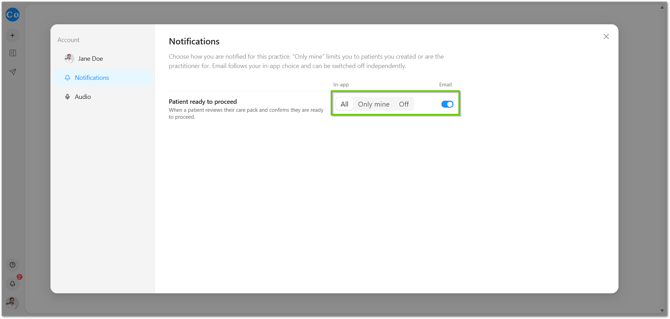
💡 Tip: If you're the one calling patients back after they tap "I'd like to proceed" on a Care Pack, keep this switched on - it's how you know to follow up while they're still warm.
Audio
These settings adjust how CoTreat's recorder handles background noise, so your transcription stays accurate.
- Music filtering - if you often have a TV or radio playing in the background, turn this up (to Strong, for example) to more aggressively filter it out.
- Silence sensitivity - adjusts how quickly CoTreat treats a pause as the end of speech.
📝 Note: There are a few more technical audio settings on this page as well - you shouldn't need to touch these day to day, so it's fine to leave them at their defaults.
Practice settings (for owners and admins)
⚠️ Warning: These settings are only visible to Owners and Admins on a practice account.
Practice-wide settings live under Account as well, beneath the Practice heading in the left-hand menu.
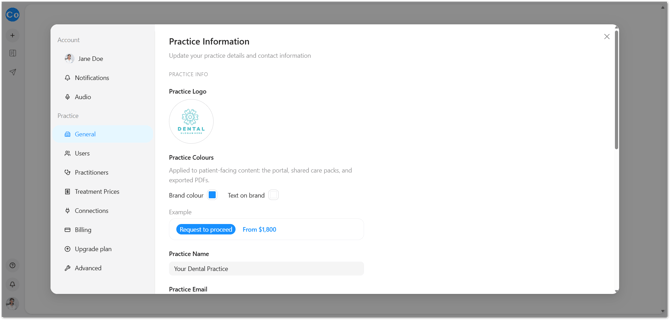
Practice Information
Update your practice's core details: logo, brand colours (used across patient-facing content - the portal, shared Care Packs, and exported PDFs), practice name, contact email and phone number, state, timezone, and default session visibility.
Users
Invite your team and set their role. See our full guide, Setting Up Your Team in CoTreat, for the walkthrough on roles, sending invitations, and resending an expired one.
Practitioners
Once an invited user has accepted, add them as a practitioner so they show up correctly across sessions and Care Packs. This is also covered in Setting Up Your Team in CoTreat.
Treatment Prices
Add or update your fee schedule so treatment plans and proposals show the right pricing.
- Go to Account > Treatment Prices.
- Select Import CSV.
- Upload your price list - required columns are
item_codeand at least one price column; name, description, category, subcategory and pricing method are optional.
📝 Note: If your practice management system is integrated, treatment plans pull pricing directly from your PMS automatically, matching whatever custom prices you've entered there - you won't need to maintain this list separately.
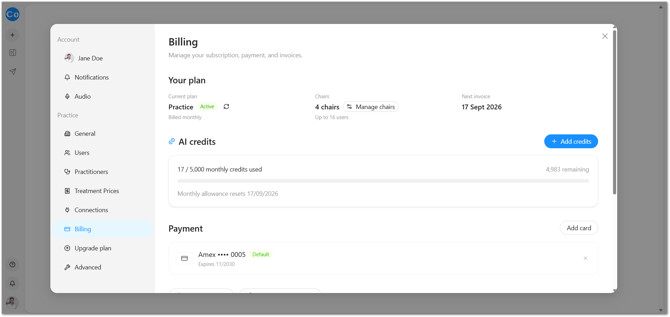
Billing
Owners can manage the subscription, payment details, and chair count from Account > Billing. Admins on a practice account won't see billing information - this page is Owner-only.
Advanced
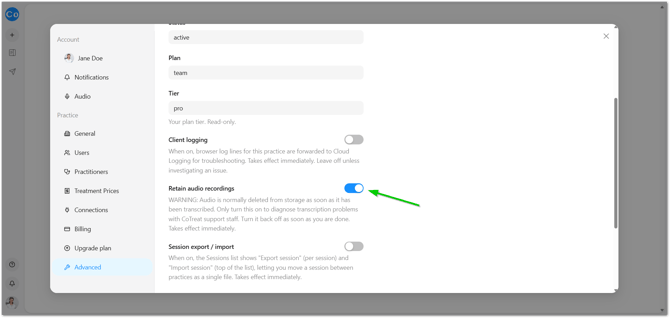
Most settings on this page can be left as they are. The one worth understanding is Retain audio recordings.
With this switched off, which is the default, Chairside deletes the audio of a consult as soon as it has been transcribed. Switching it on keeps the original audio instead, and that audio is not deleted automatically - it stays until someone removes it. The setting exists so our support team can listen back and investigate if you hit a transcription problem.
⚠️ Warning: Leave Retain audio recordings off unless our support team has asked you to turn it on for a specific investigation. Keeping consultation audio changes what your practice is holding and for how long, so if you do turn it on, check that your patient consent wording still describes what happens accurately - and turn it back off once the investigation is finished.
Good to know
Do I need a Practice account for these settings? Only for Users, this require your subscription to be upgraded to a Practice account. Profile, Notifications and Audio are available to everyone, and Billing is visible to Owners regardless.
What's the Connections tab for? That's for practice system integrations, which our team sets up with you directly - there's nothing you need to configure there yourself.
Can I change any of this later? Yes - everything in this guide can be updated at any time from Account settings.