
As a practice owner or admin, you have a dedicated set of tools to invite your team and set up your practitioners in CoTreat. This guide walks through both.
⚠️ Warning: Team setup is only available on a Practice account. If your subscription hasn't been upgraded to a Practice account yet, you won't see Users under Account settings - upgrade your subscription first, then come back to this guide.
Table of contents
Roles in CoTreat
There are four roles in CoTreat. Only Owners and Admins can invite users and manage practitioners.
- Member - Read/write access to sessions and Care Packs, with limited access to settings.
- Admin - Same as Member, plus access to all settings except billing.
- Owner - Full access to everything, including billing.
- Guest - This will allow sharing read-only sessions with an external user.
Inviting a user
Once your practice is on a Practice account:
- Go to Account > Users.
- Select Invite user.
- Enter their email address and set their role.
- Select Send invitation.
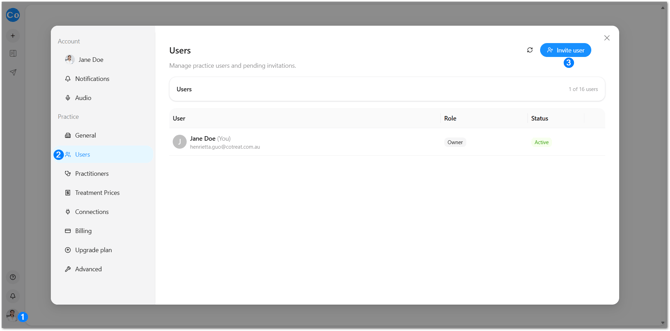
Invitations are valid for 7 days. If one expires - or you just need to send it again - you can resend it directly from the Users page.
Accepting an Invite to Another Practice or Location
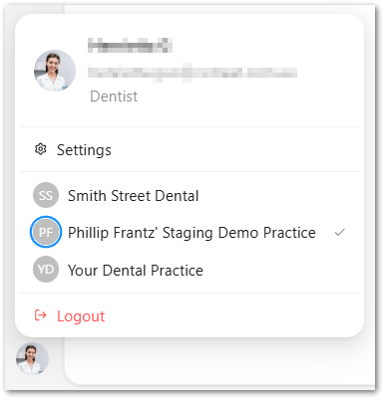
If a team member is invited to join a second practice or location, they'll need to log out of their current CoTreat account before accepting that invite. Once they've accepted it, they'll have access to both locations under the one login.
From there, a location switcher appears in the bottom-left of the screen, letting them move between locations without logging in and out separately.
This means a team member working across multiple practices only ever needs one login and password - the location switcher handles the rest.
Adding your practitioners
Practitioners are separate from user accounts - this is where you record who's actually treating patients (name, specialty, contact details), and optionally link that record to a user's login.
Start adding practitioners only once your users have accepted their invite. This will making the linking process easier as the practitioner information will be auto-populated once the user is linked.
- Go to Account > Practitioners.
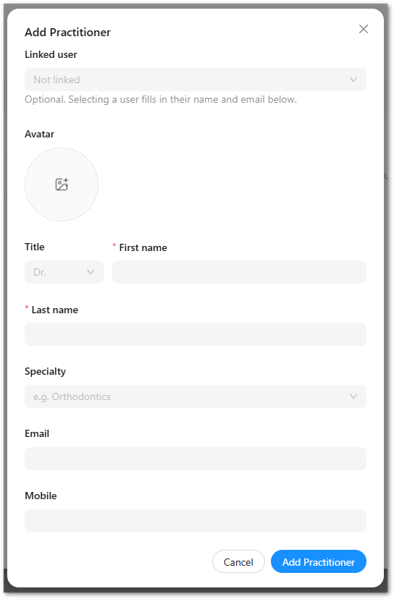
- Select Add Practitioner.
- Select the user under Linked user to connect the practitioner profile to their login - their name and email will fill in automatically.
- Enter other details as needed, and upload a profile picture if you'd like.
- Select Add Practitioner to save.
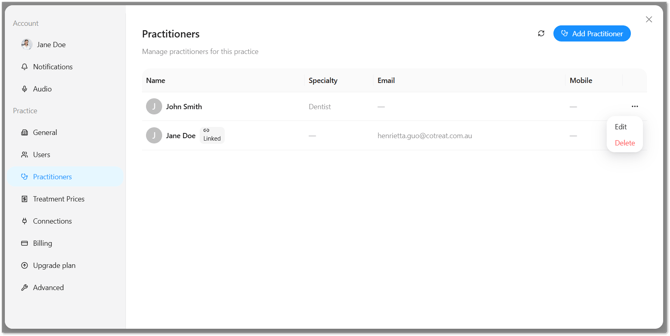
To edit or remove a practitioner later, select the ··· menu next to their name on the Practitioners page.
🛑 Caution: Deleting a practitioner removes their record permanently and can't be undone. If you just need to update their details, use Edit instead.
Frequently Asked Questions
Do I need a Practice account to do this?
Yes - Users and Practitioners are only available once your subscription's been upgraded to a Practice account. Reach out to upgrade if you don't see these options.
How long do invitations last?
7 days. After that, resend the invitation from Account > Users.
Can I edit or remove a practitioner later?
Yes - open Account > Practitioners, select the ··· menu next to their name, and choose Edit or Delete. Deleting is permanent, so use Edit if you just need to update their details.
Do I need to link a practitioner to a user account?
No, it's optional. A practitioner profile can exist on its own for record-keeping - linking it to a user just connects it to that person's login.
What can a Guest role do?
It allows you share read-only sessions with people outside your practice.
A trial message appears after accepting an invite
If a team member's account is on a trial and they accept an invite to another practice without logging out first, they may see a message saying their trial is ending, even though they're being added to a different account. Logging out before accepting the invite, as above, avoids this.
If they've already clicked the invite link without logging out first, resend the invite so a fresh link is generated, have them log out, and only then click the new link.
A user can't access the practice account - what's going on?
This is usually because they've created their own separate account (or started a free trial) instead of being linked to the practice's team account. The practice admin will need to invite them properly (see Inviting a user, above). Once the invite email arrives, the user must log out of Chairside first before clicking the link to accept it - accepting while still logged into another account is what causes the mismatch. After logging in, they can switch between locations from the account switcher in the bottom left if the practice has more than one.
The invite link doesn't work, or says it's expired - what do we do?
Invitations expire after 7 days. The admin will need to resend the invite from Account > Users, and the user should log out before clicking the new invite email, then log back in to accept it. If resending doesn't work, try revoking the invite and adding them as a new user again - this sends a fresh invite and usually clears the issue.
A user is seeing "free trial ended" or "zero credits" - is something wrong with the practice account?
Not necessarily - this usually means the user is logged into a personal free trial account rather than the practice's own account. If the practice is on a paid Practice account, get the admin to resend the invite, and make sure the user logs out before clicking the invite email so they link to the right account.
I need to change the email address linked to my account - how do I do that?
There's currently no way to change the email address on an existing account directly. If you need to switch to a different email, invite that new email address as a user (see Inviting a user, above) and set their role to Admin or Owner so they have the same level of access. Once they've accepted and are set up, you can remove the old user's access from Account > Users if it's no longer needed.