
What it does: Some tools now pause to ask you a few focused questions before they build - for a more tailored result. When they do, an interactive card appears just above the message box.
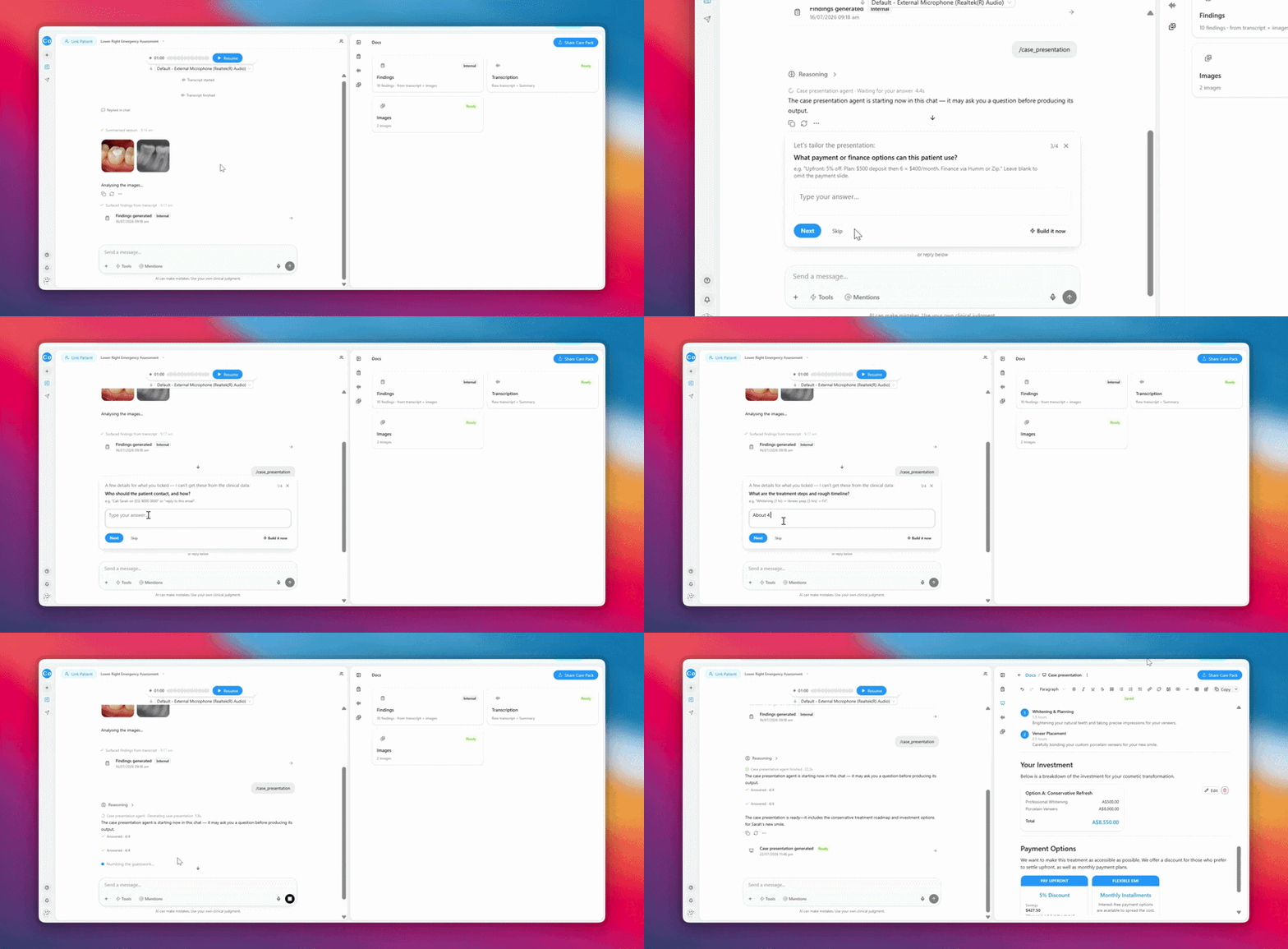
How it works:
- Ask for a case presentation (or another interactive tool) as normal
- A card appears above the message box titled "Let's tailor the [document]"- with a counter showing your progress (e.g., 1/3)
- Answer each question in one of four ways:
- Click a numbered option
- Press the number key (1, 2, 3…) on your keyboard
- Type your own answer in the message box and send it
- Or use "Something else..." to enter a free-text answer
- Answer → the card moves to the next question automatically
- When you are done, the card tucks away and the assistant gets on with building
Options that appear on every card:
- Recommended - the assistant's suggested default, marked with a small badge
- Skip - bypass a question and move on
- Build it now - bail out of the remaining questions and let the assistant proceed with defaults
- ✕ (top-right) - cancel the whole interview cleanly
Good to know:
- You will see a live status line in the chat ("Case presentation agent · Waiting for your answer) so you always know when the assistant needs something from you.
- Only some tools are interactive - most run one-shot as they always have.
Tip: if you're in a hurry, click the Recommended option or press Build it now. If you want the output to feel exactly right, take the extra 30 seconds and answer each question deliberately.