
Get the key points from a consultation
A consultation can cover a lot of ground.
Transcript Summary turns the conversation captured during Transcribe into a concise summary, so you can quickly revisit what was discussed without reading through the entire transcript.
You can also give the summary a particular focus if there's something specific you'd like CoTreat Chairside to prioritise.
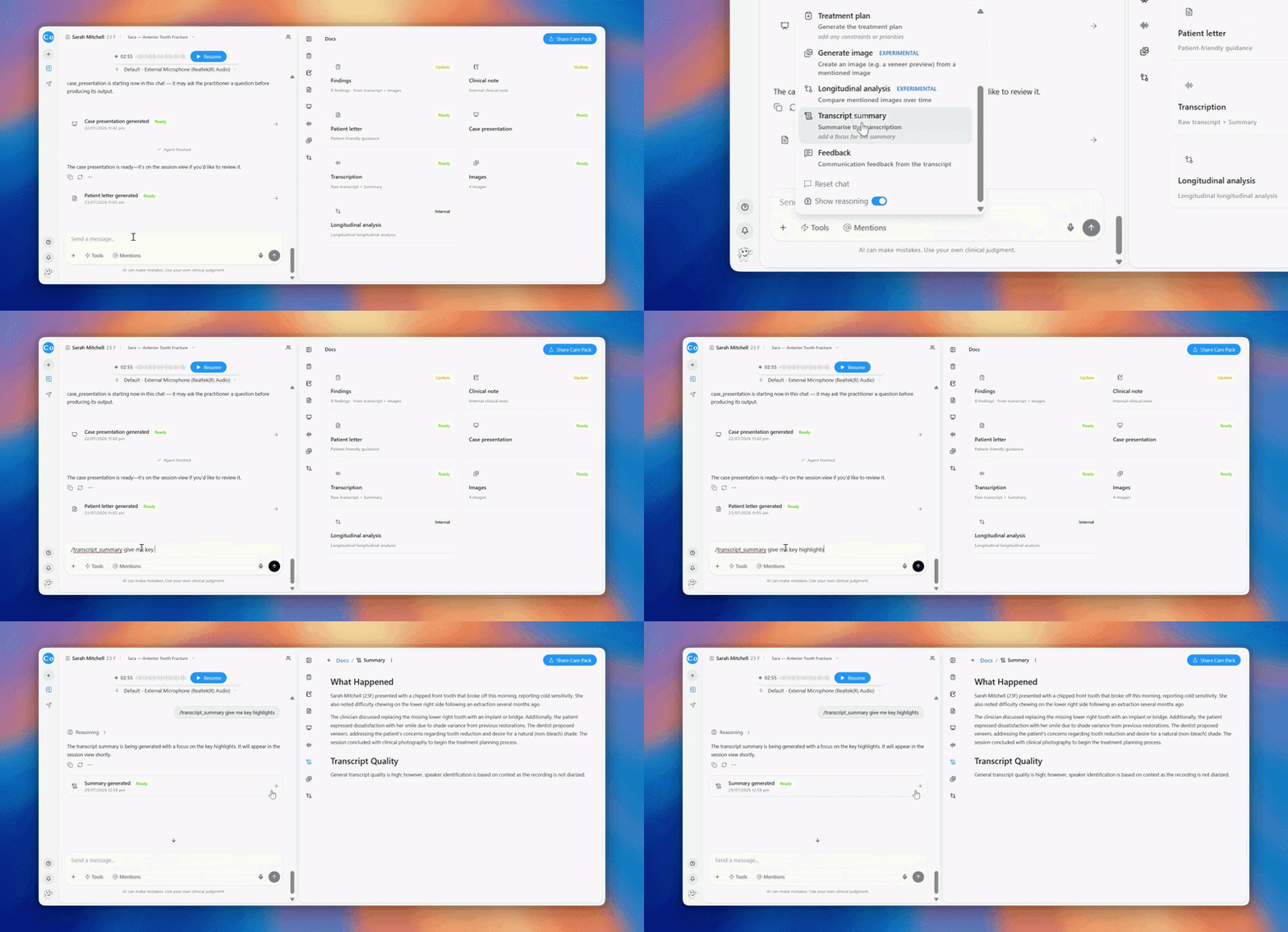
Create a Transcript Summary- Open a session with a completed transcription.
- Select Tools.
- Choose Transcript Summary.
- Add a focus for the summary, if needed.
- Generate your summary.
- Review the result.
Give your summary a focus
You don't have to summarise everything equally.
Add a focus to tell CoTreat Chairside which parts of the consultation you'd like to prioritise.
For example:
“Focus on the treatment options discussed and the patient's concerns.”
“Summarise the patient's main symptoms and relevant history.”
“Focus on the agreed next steps.”
This can be particularly useful when you're returning to a longer consultation and need to find the most relevant information quickly.
Once a consultation has been transcribed, the transcript itself cannot be edited. It remains as captured during the consultation.
You can refine the summary or add additional information in chat, but this will not alter the underlying transcript.
FAQs
Do I need a transcription before I can create a Transcript Summary?
Yes. Transcript Summary works from the conversation captured during Transcribe, so a completed transcript needs to be available within the session.
What's the difference between a Transcript Summary and a Clinical Note?
A Transcript Summary gives you a concise overview of what was discussed during the consultation.A Clinical Note turns the available clinical information into structured clinical documentation.
Can I choose what the summary focuses on?
Yes. Add a focus when generating the summary to tell CoTreat Chairside which parts of the consultation you'd like it to prioritise.
Can I change the Transcript Summary after it's generated?
Yes. You can ask CoTreat Chairside to shorten the summary, expand on a particular area, or refocus it on specific parts of the consultation.Any changes apply to the summary only. The original transcript remains unchanged.
Can I edit the transcript?
No. The original transcript cannot be edited. If something needs clarification or additional information was not captured, you can provide it separately in chat and use that context when creating other outputs. This does not change the original transcript.
What if there's an error in the transcript?
The transcript itself cannot be corrected or overwritten. Add the correct information in chat so CoTreat Chairside has the additional context when generating subsequent outputs.