
CoTreat works best when everyone in the practice knows which part of the workflow they own. Every appointment follows the same four steps: transcribe, review, share with the patient, and follow up in Conversations. Who does each step depends on how your team is set up.
This article walks through each step, suggests who usually owns it, and shows how to set it up whether or not your practice has a treatment coordinator (TC).
In this article
- How the daily workflow works
- Choosing who owns each step
- Following the four steps
- Setting it up for your team
- Doing an end-of-day check
- Getting help
How the daily workflow works
Each appointment moves through four steps inside CoTreat, and each hand-off happens in the platform rather than on paper or by word of mouth.
- Transcribe the appointment and select the documents you need.
- Review the clinical note and patient document.
- Share the patient letter or case presentation with the patient.
- Follow up on patient replies in Conversations.
The steps stay the same for every practice. Only the person responsible for each one changes.
Choosing who owns each step
The setup we see work best is: the dental assistant (DA) starts and stops transcription and selects the documents, the clinician does a quick review, and the front desk or TC sends documents to patients and follows up.
Use the table below as a starting point, then agree as a team on who owns each step at your practice.
|
Step |
Usually owned by |
Can also be done by |
|---|---|---|
|
Start and stop transcription |
Dental assistant |
Clinician |
|
Select documents to generate |
Dental assistant |
Clinician |
|
Review the clinical note and patient document |
Clinician |
Always the clinician |
|
Send the patient letter or case presentation |
Front desk or TC |
Clinician |
|
Follow up on case presentations |
TC |
Front desk or clinician |
|
Monitor and reply in Conversations |
Front desk |
TC |
Agree on one person who checks Conversations each day, so no patient message is left waiting.
Following the four steps
Step 1: Transcribing the appointment
- Start transcription when the patient is seated, and stop it when the appointment ends.
- Select the documents needed for this appointment: the clinical note, plus a patient letter (after every consult) or a case presentation (for patients with a treatment plan).
Step 2: Reviewing the note and patient document
- The clinician checks the clinical note and the patient letter or case presentation. This usually takes 30 seconds to a minute.
- Edit anything that needs changing so the documents are ready to send.
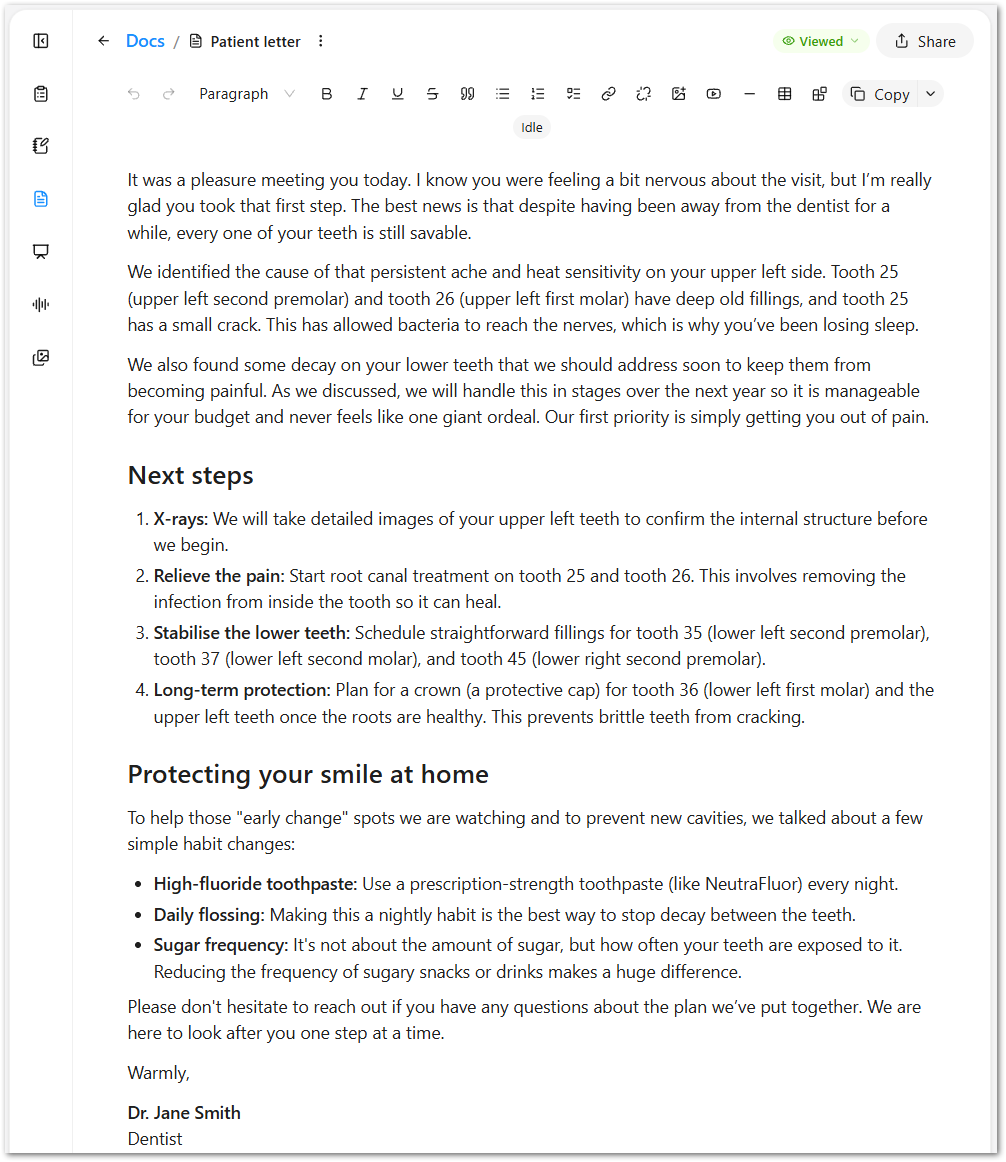
To get notes and documents closer to how you write them, see Creating Custom Templates in CoTreat.
Step 3: Sharing with the patient
- Send the patient letter after every consult.
- Send the case presentation to patients with a treatment plan.
- If your practice has a TC, the TC usually sends case presentations and follows up on them.
Step 4: Following up in Conversations
- Check Conversations at set times through the day, for example mid-morning, after lunch and before close.
- Answer patient questions and help them book treatment.
- Pass any clinical questions to the clinician.
Setting it up for your team
Find the row closest to your practice and adjust it to suit your team.
|
Team setup |
Transcribe and select documents |
Review |
Send to patient |
Case presentation follow-up |
Conversations |
|---|---|---|---|---|---|
|
DA, front desk and TC |
DA |
Clinician |
TC or front desk |
TC |
Front desk, TC as backup |
|
DA and front desk, no TC |
DA |
Clinician |
Front desk |
Front desk |
Front desk |
|
Clinician without a DA |
Clinician |
Clinician |
Clinician or front desk |
Front desk |
Front desk |
|
Solo or small practice |
Clinician |
Clinician |
Clinician |
Clinician |
Clinician or reception |
The clinician always reviews the clinical note and patient document before it is sent, whatever your team setup.
Doing an end-of-day check
A two-minute check before close keeps everything on track:
- Every consult today has a reviewed clinical note.
- Every consult patient has been sent their patient letter.
- Every patient with a treatment plan has received their case presentation.
- There are no unanswered patient messages in Conversations.
Getting help
Bookmark the CoTreat login link on every workstation: dental.cotreat.ai
If you get stuck, click the question mark icon inside CoTreat, browse the CoTreat Help Center, or email help@cotreat.com.au.