
If you're short on time: skip to Quick Start for the 3 things to try today, or Quick Starter Prompts for phrases you can copy and paste.
For the detailed, click-by-click version, see Completing Your First Session.
What is CoTreat?
CoTreat listens to a consult and turns it into the paperwork you'd normally write up later - clinical notes, a patient letter, a treatment plan - and then goes further: it builds a proposal you can send to the patient's phone the same day, so they can say yes while it's still fresh in their mind.
It's not just for the dentist. Reception and treatment coordinators have a real role too - sending documents, answering patient questions, and knowing exactly when to follow up.
One rule that never changes: nothing is generated or sent without a person choosing and reviewing it first. CoTreat drafts. You decide.
How CoTreat generates anything
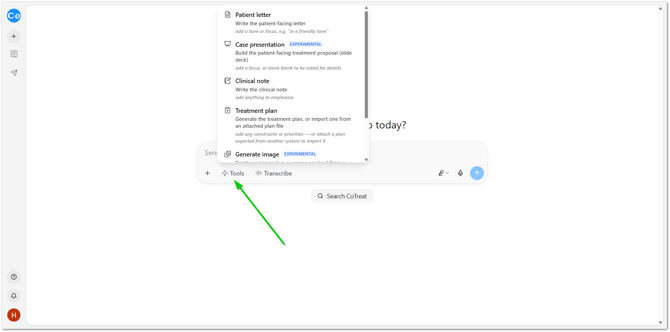
Every feature below works the same way, so once you've done it once, you've done it for all of them:
- Open Tools from the home page or a session.
- Select whichever options you need - Clinical Notes, Patient Letter, Case Presentation, whatever's relevant.
- Want something more specific - a different tone, a referral letter, a one-off request? Type it in and hit enter.
CoTreat builds it right there, ready to review.
Quick Start
New to CoTreat, or short on time today? These three things cover most of what you'll use, day to day.
- Tap Transcribe at the start of a consult, link it to the patient, and run your appointment as normal. Tap again to stop.
- Open Tools and review what's suggested - usually Clinical Notes and a Patient Letter - and select anything else you need.
- Build a Care Pack and send it. If there's a treatment decision on the table, add the Case Presentation - it's the fastest way to turn "let me think about it" into a booked appointment.
Everything below is here for when you want to go deeper.
What's in CoTreat
- Transcribe - capture the consult
- Findings - the clinical picture, pulled out automatically
- Clinical Notes - your notes, written up for you
- Patient Letter - the same findings, in plain language
- Treatment Plan - item codes and treatment names
- Case Presentation - a proposal the patient can actually say yes to
- Care Pack - choosing what the patient sees, and sending it
- Generate Image - show, don't just tell
- AI Colleague - a second opinion, on tap
- Feedback - a read-back of the session
- Longitudinal Analysis - patterns across visits
- "I'd like to proceed" notifications - knowing when to call
Transcribe
Captures the consult so nothing needs to be written up from memory later. Run by whoever's treating - dentist, OHT, or clinician.
How to use it
- Tap Transcribe
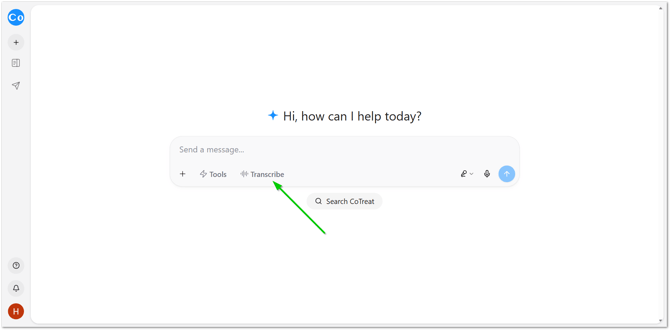
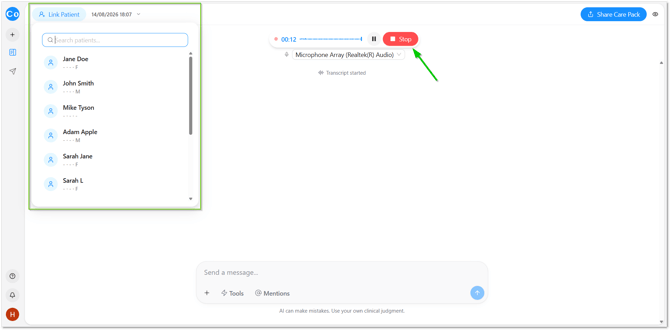
- Link it to the patient (you can also link the patient afterwards if it's a busy morning).
- Run the appointment as normal - there's nothing extra to do or say.
- Tap Stop when the consult is finished.
💡 This replaces your evening write-up - it doesn't add a step to your day.
Findings
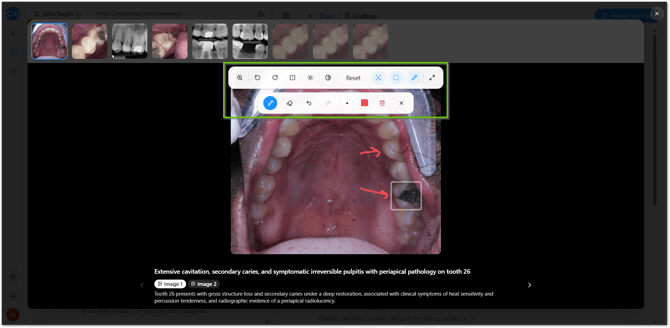
Pulls the clinical findings out of the consult and any photos taken during it, already annotated - the shorthand you'd normally talk your assistant through ("25, 26, deep decay, pulpal involvement"), structured the moment you stop talking.
How to use it
- Open Findings after a consult.
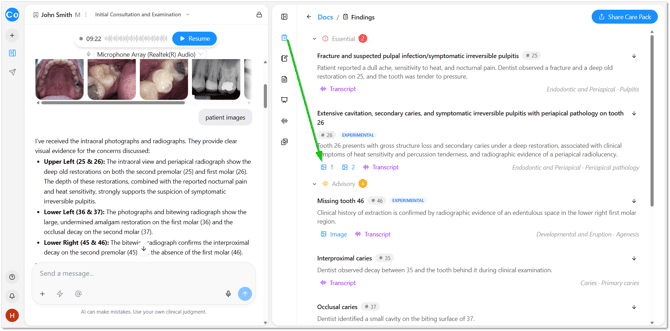
- Add or adjust annotations if needed.
- Share it on-screen with the patient CoTreat, or add it to a Care Pack.
Clinical Notes
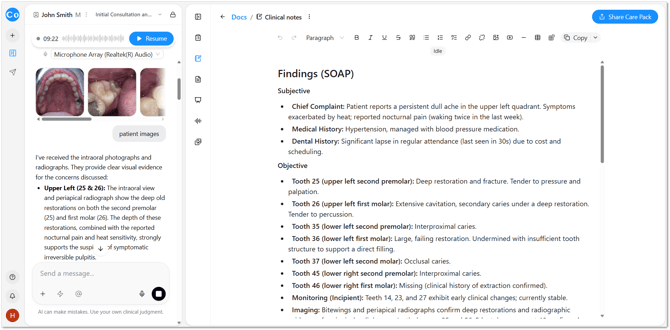
Writes up clinical notes (templates coming soon).
How to use it
- Open Tools and select Clinical Notes from the options after a consult.
- Review before it's saved to the patient's record.
Patient Letter
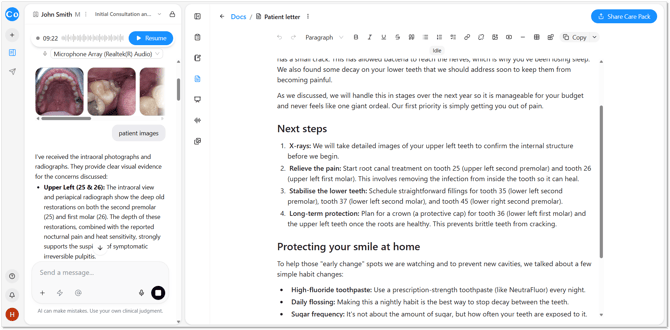
The same findings as above, translated into plain language the patient can actually take away, forward on, or read back at home.
How to use it
- Open Tools and select Patient Letter after a consult.
- Review it, then add it to a Care Pack or send it directly.
Treatment Plan
Lays out item codes and treatment names against the findings.
For unintegrated accounts, this is AI-drafted.
Once on a practice account and integrations are connected, treatment plans will pull directly from your practice's own system.
Case Presentation
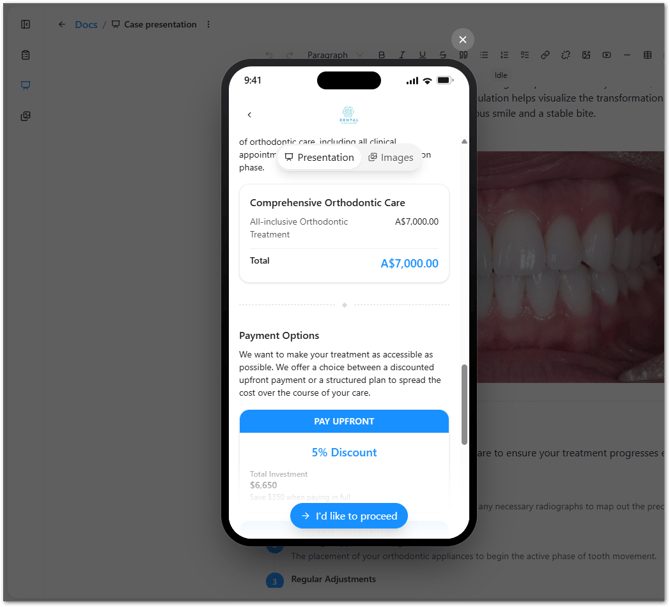
This is the one worth learning first. Findings become an actual proposal for the patient - two options, priced side by side, explained in plain language - sent to their phone the same day, while the consult is still fresh.
How to use it
- After a consult with a treatment decision on the table, open Tools and select Case Presentation.
- Review the options and pricing.
- Add it to a Care Pack and send.
💡 Tip: think of the last patient who said "let me think about it" and never rebooked. This is built and sent before they've left the building.
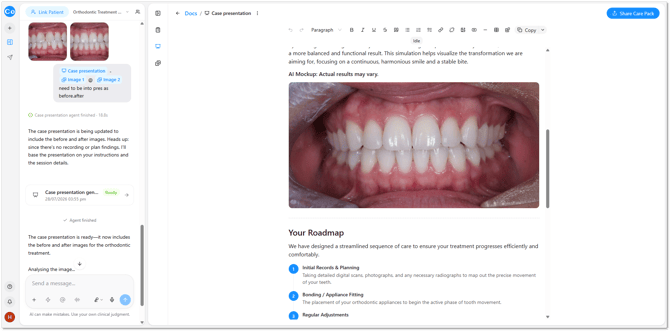
Read our building a case presentation article here for the full workflow.
Care Pack
The delivery step - choose exactly what the patient sees (letter, treatment plan, images, case presentation, scans), preview it exactly as they'll see it, then send by SMS or email.
How to use it
- Open Care Pack and toggle on whatever the patient should receive.
- Tap Preview to check it.
- Tap Share Care Pack.
💡 Tip: alongside Case Presentation, this is the feature that turns everything else CoTreat generates into a booked appointment - it's worth getting comfortable with early.
Generate Image (Beta)
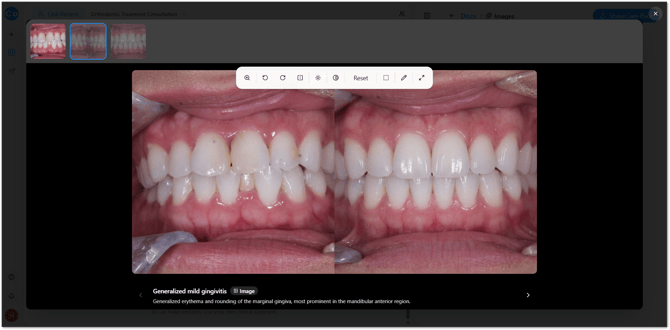
For veneers, crowns, or implants - generates a realistic preview from a photo already in the chart, so the patient can see roughly what they'll look like before committing.
How to use it
- Open Tools and select Generate Image for a relevant treatment.
- Choose the photo already in the chart.
- Review the preview with the patient, or add it to a Care Pack.
For a patient who's been self-conscious about a gap or chip for years, showing them is far more persuasive than describing it.
Read our Creating a Preview Image article here for more details.
AI Colleague
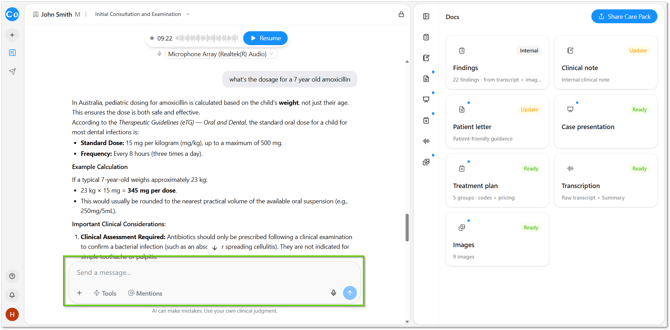
A chat, not a document generator. Ask it anything dentistry-related - medicine, materials, a differential, a second opinion on a case - and it pulls directly from the patient's session, so it knows the context already.
It's just as useful at the front desk: reception and treatment coordinators can ask what needs to be booked from a patient's treatment plan, or get help answering a patient's question, without guessing or putting them on hold.
AI can make mistakes. Always apply your own clinical judgement, or check with the clinical team, before acting on anything important.
How to use it
- Open AI Colleague during or after a session.
- Type your question in plain English and hit enter.
- Use the answer as a second opinion - not a final one.
See Quick Starter Prompts below for ready-to-use examples.
Feedback
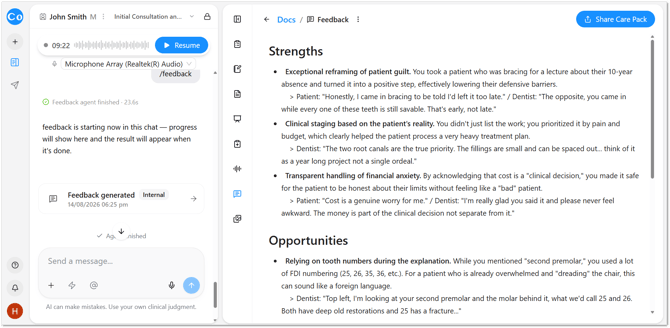
A read-back of the session itself - what was covered, what landed well, and what could be covered differently next time. It's about the appointment, not a performance review of you.
How to use it
- Open Tools and select Feedback after a consult.
- Read through - use it as a quick reflection, not a report card.
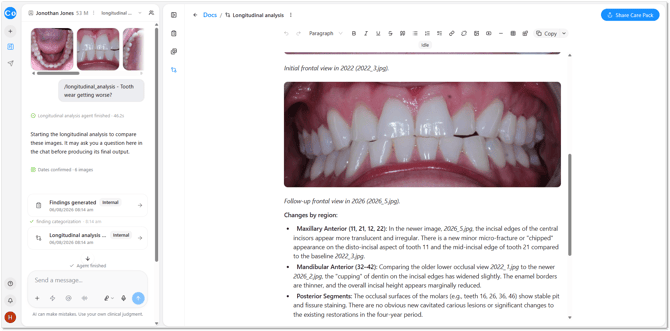
Longitudinal Analysis (Beta)
Looks across a patient's visits over time to surface patterns that are easy to miss appointment by appointment - like recurring decay in the same quadrant.
How to use it
- Open a patient's record and select Tools then Longitudinal Analysis.
- Review the patterns it surfaces alongside your own clinical judgement.
"I'd like to proceed"
When a patient taps "I'd like to proceed" from a Care Pack, your team is notified immediately - useful for reception or whoever's fielding follow-up calls.
How to use it
- Watch for the notification.
- Call the patient back while they're still warm, instead of waiting for them to phone in.
This is the moment reception's role in CoTreat really pays off - it turns "the patient said yes" into "the patient is booked."
Quick Starter Prompts
These are ready to copy, paste, and tweak. AI Colleague - and the free-text field in Tools - both understand plain English, so don't worry about getting the wording exactly right.
Clinical questions
- "What's the interaction between [drug A] and [drug B] for this patient?"
- "What's a good alternative restorative material for a patient with a metal allergy?"
- "Give me a second opinion on this treatment plan for tooth 36."
- "What should I watch for post-op with this procedure, given this patient's medical history?"
Patient questions and bookings
- "Based on this patient's treatment plan, what should I book next?"
- "This patient is calling to ask about their upcoming procedure - what can I tell them?"
- "What prep does this patient need before their next appointment?"
- "The dentist is with a patient - can you tell me what this caller needs booked?"
When generating documents - typing something custom
In Tools, instead of picking from the usual options, type exactly what you need and hit enter:
- "Write a referral letter to an oral surgeon explaining this diagnosis."
- "Summarise this consult for the patient's GP."
- "Draft a simple explanation of the payment plan for this treatment."
Good to Know
Does CoTreat send anything without me checking it first?
No. Every document is generated as a draft - a person always chooses what to generate and reviews it before anything is sent.
Is Treatment Plan accurate?
The findings and treatment names are reliable, but for unintegrated accounts the item codes are AI-drafted - always give them a check before sending. Integrated accounts will pull all plans created from your practice system.
Can I trust AI Colleague's answers?
Treat it as a second opinion, not a final one - the same way you'd treat a quick chat with a colleague.
What does "Beta" mean?
Generate Image and Longitudinal Analysis are newer features still being refined. They're worth using, just double-check the output a little more closely than you would elsewhere.
I'm short on time today - what's the one thing to do?
Run Transcribe on your next consult, and if there's a treatment decision on the table, send a Case Presentation. That's the fastest way to see CoTreat pay for itself.